
Why I Made This Mod
I love playing with multiple households in The Sims 4, but university has always been a problem for me.
Whenever I enrolled a Sim in university and switched to another household, things would go wrong. My student would miss classes, get terrible grades, end up on academic probation, or even get suspended. Basically, once you enroll a Sim in university, you’re stuck playing that household until they graduate if you don’t want to ruin their education.
And there’s another thing that’s always bothered me. You never really know how well your Sim is doing until the end of the term!
Sure, you can email your professors and ask about your progress, but they just give you those same vague responses. Homework and presentations aren’t always enough to get good grades, either. You also need to study from your textbooks.
But how much studying is enough?
I’d have my Sim study for hours and still have no idea what their actual grade was. Did I study enough? Do I need another few hours? If I’m already getting an A+ in a course, why am I still wasting time studying for it?
And sometimes I’d think everything was going great, only to reach the end of the term and discover I’d gotten a terrible grade because I hadn’t studied enough.
Well, I finally got tired of all that drama!
That’s why I made University Portal. I wanted to be able to switch between my households without worrying about my university students getting punished while I’m away. And I wanted a way to actually see how my Sims are doing in their courses.
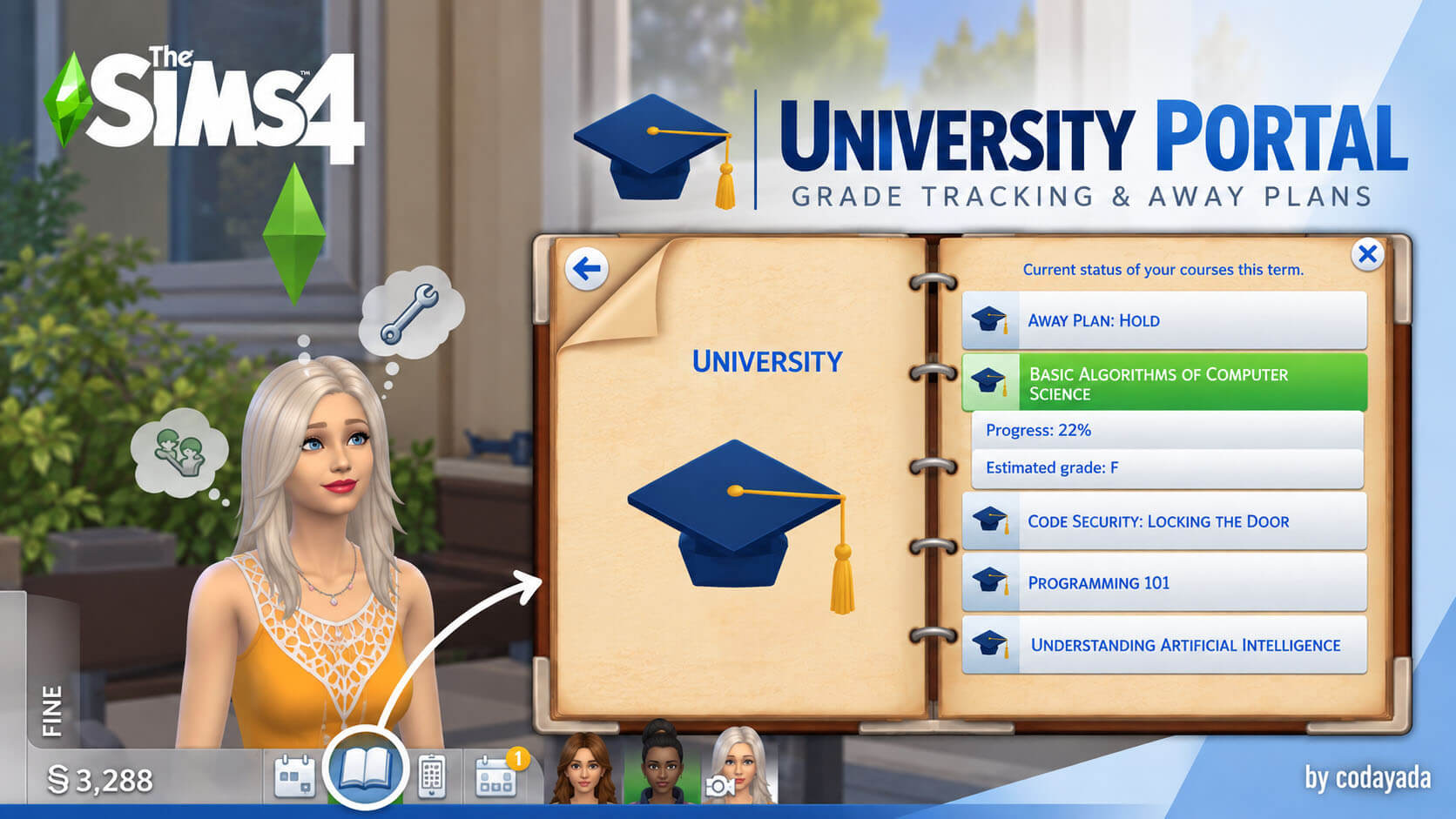
Now I can have my Sim study for a few hours, open the Notebook, and check their progress. If they’re already doing great in one course, I can focus on another. No more guessing, no more surprise bad grades, and no more being stuck in the same household for an entire university degree!
University Portal – Player User Guide
Welcome to University Portal! This guide covers everything you need to know to track university coursework in real time and play rotational university households without your Sims failing classes while you are away.
1. What the Mod Does
University Portal enhances The Sims 4: Discover University in two main ways:
Real-Time University Notebook
- Adds a dedicated University tab (with a graduation cap icon) to your Sim’s Notebook.
- Shows live progress percentages and estimated letter grades for every enrolled course, so you always know where your student stands before finals.
- Displays your current Away plan right inside the Notebook.
Rotational Play (Away Plans)
- In vanilla The Sims 4, if you switch to another household during a university term, EA marks your away students absent for every class, causing them to fail and end up on academic probation.
- University Portal lets you assign each student Sim an Away Plan before switching households. While away, absence penalties and grade decay are blocked, and their term is handled according to the plan you chose.
2. Installation
- Make sure you have The Sims 4: Discover University installed.
- Download or locate:
- UniversityPortal.package
- UniversityPortal.ts4script
- Copy both files directly into your Sims 4 Mods folder:
- Documents\Electronic Arts\The Sims 4\Mods\ (or subfolder at most one level deep).
- In game settings:
- Go to Game Options > Other.
- Check Enable Custom Content and Mods and Script Mods Allowed.
- Apply changes and restart your game.
Updating from an older version
If updating from older versions (such as UniStatus), delete UniStatus.package and UniStatus.ts4script from your Mods folder so the mod does not load twice.
3. Where to Find It
To set or view an Away Plan:
- Switch to the household of your student Sim.
- Click on the enrolled student Sim.
- Open the University Portal pie menu category (marked with a graduation cap icon).
Note: The menu appears only on currently enrolled student Sims in your active, playable household. Sims who are not enrolled in university or who belong to an unplayed household will not show the menu.
4. Away Plans
University Portal offers four Away Plans. You can select a different plan for each student Sim:
Hold (Default)
What Happens While Away:
Course performance is frozen at the moment you leave. No grade decay and no missed-class penalties.
What Happens at Term End:
Hold never produces an F.
- If you left before 50% of the term elapsed, or if the Sim’s projected performance is below passing (60%), the Sim is withdrawn without penalty.
- If projected performance is passing (60% or higher), EA awards the projected grade.
When to Use It:
Best when you want to pause a student’s term or ensure they never fail due to your absence.
Simulate
What Happens While Away:
Course performance steadily accumulates over time based on Study Focus, traits, and skills. No absence penalties.
What Happens at Term End:
Graded by EA from the accumulated performance.
When to Use It:
Best for realistic background progression while you enjoy playing other families.
Auto-Pass
What Happens While Away:
No absence penalties while away.
What Happens at Term End:
Each course performance is raised to EA’s minimum passing threshold (60% / D-) if lower. Higher grades are never lowered.
When to Use It:
Best when you want a hassle-free guarantee that your Sim passes all classes.
Off
What Happens While Away:
Vanilla EA behavior. Missed classes count as unexcused absences.
What Happens at Term End:
Standard EA grading (Sims risk failing and probation).
When to Use It:
Best when you want standard EA mechanics for a specific Sim.
Understanding Hold’s Penalty-Free Withdrawal
Why it happens:
If a Sim was only played for a small part of the term (less than 50% time elapsed) or was struggling when you left (projected score below 60%), Hold protects them from failing.
What happens:
The Sim is cleanly withdrawn from the term.
Credits & Standing:
All previously completed course credits are kept, and no probation or suspension is applied.
Continuing:
When you return, the Sim is unenrolled and ready to re-enroll in a fresh term whenever you like.
Tuition:
In line with EA university mechanics, tuition already paid for the withdrawn term is not refunded.
5. Study Focus (Simulate Plan Only)
When you select Simulate, three Study Focus options appear in the menu to guide how your Sim spends their time:
- Study Hard: Target 88 points (aims for A / B grades).
- Balanced (Default): Target 78 points (aims for solid B / C grades).
- Social Life: Target 66 points (aims for passing C grades while prioritizing downtime and friendships).
How Traits and Skills Influence Simulate
Your Sim’s personality and skills dynamically modify their target score:
Traits:
- Genius: +6 points
- Bookworm: +4 points
- Ambitious: +4 points
- Perfectionist: +2 points
- Goofball: -2 points
- Lazy: -6 points
Skills:
+0.5 points per level in skills relevant to the course (up to +5 points for level 10).
Consistent Variation:
A small deterministic variance (±2 points) keeps results realistic and unique per course and term.
6. How to Change Your Mind
- Simply click your student Sim, open University Portal, and select a different plan or focus anytime.
- The currently selected option is clearly marked with (Current) (e.g., Away Plan: Hold (Current)).
- The last option chosen is what takes effect.
- If you ever want default EA behavior back, choose Away Plan: Off.
- Important: You can only change plans while that Sim’s household is active. Choose your desired plan before switching households!
7. Typical Play Session
Here is what a normal rotational play session looks like:
Active Household
- Click Student Sim > University Portal > Choose Plan (e.g. Simulate / Balanced)
- Open Notebook > Check University tab to verify status
Switch Household
Playing Other Households
- Days pass in-game
- The away plan handles the student’s term; no absence penalties
Switch Back
Return to Student Household
- Notification pops up: “University Portal – While you were away”
- Read course grade progress and term outcomes!
8. Return Report and the Notebook
The “While You Were Away” Notification
Upon switching back to a household with students who were away, you will receive a notification titled University Portal – While you were away:
- Summarizes each course: start performance to end performance (e.g. Biology: 45% to 78% (B)).
- Indicates whether the term completed or is still in progress.
- If a student was withdrawn under the Hold plan, the notification clearly explains:
“<Sim> was withdrawn from this term without penalty. Credits are kept. Re-enroll to continue.”
and names the course that triggered the withdrawal.
Notebook “Away Plan” Row
Open your Sim’s Notebook at any time and click the University category:
- Each course has an expandable row with real-time percentage and estimated letter grade.
- An extra row labeled Away plan: <Plan> (e.g., Away plan: Simulate (Balanced)) shows your selected strategy and an explanation of what it does.
9. Academic Probation and Suspension Protection
In vanilla gameplay, absent students often receive academic probation or suspension.
With University Portal:
- For all away plans except Off, academic probation and suspension are automatically skipped if the term concludes while the Sim’s household is away.
- Earned grades, passing marks, and degree credits are still awarded normally.
10. FAQ & Troubleshooting
Why is the “University Portal” menu not showing up?
Not Enrolled:
The Sim must currently be enrolled in university classes for the current term.
Inactive Household:
The Sim must belong to your currently active, playable household. You cannot set plans by clicking visiting or NPC students.
Script Mods Disabled:
Verify that Script Mods Allowed is checked in Game Options > Other, and restart the game.
Missing Package:
Both UniversityPortal.package and UniversityPortal.ts4script must be in your Mods folder.
What happens if I uninstall the mod?
- Your away plan settings are safely saved in your game save folder (The Sims 4/saves/UniMod/).
- If you remove UniversityPortal.package and UniversityPortal.ts4script, your game will safely revert to standard vanilla EA university behavior. No save corruption or leftover broken objects will occur.
Thank You & Support ❤️
Thank you so much for trying University Portal! I hope it makes university life a little easier for your Sims!
If you enjoy the mod, feel free to leave a comment or share your feedback. Your support means a lot! 💕
Happy Simming, and may your Sims get straight A’s! 🎓
Sims 4 Maxis Match cc finds, ui cheats, best mods wickedwhims and wonderful whims
Credit :